What is Cloud Immutability?
Cloud immutability means that once your backup data is saved in the cloud, it cannot be changed or deleted for a set period. This protects your cloud backups from cybercriminals, accidental mistakes, or intentional tampering. Even if ransomware infiltrates your systems, your immutable backups remain untouched,ensuring you have a clean copy to restore from.
Think of cloud immutability as a sealed vault with a timed release. Once your data is stored inside, it remains locked and untouchable until the set period expires. No one - not even you - can alter or delete it prematurely, ensuring that your cloud backups are always there when you need them most.
BackupAssist Classic Support for Cloud Immutability
BackupAssist Classic supports cloud immutability by integrating with versioning and object locking features provided by supported cloud storage services. Instead of referencing standard file paths, BackupAssist tracks version identifiers of storage objects/blobs, ensuring the ability to recover even if f attacker attempts to overwrite or delete backup data.
Note:
1. Unlike standard cloud backup jobs, where BackupAssist automatically creates a cloud bucket or container for your backups, immutable cloud backup jobs require you to manually create and configure the bucket/container.
2. BackupAssist will detect and notify you through the backup report if you have incorrectly configured immutability.
3. In addition to the Cloud Add-on, you will need to have an active BackupCare subscription to protect your cloud backups using Cloud Immutability.
BackupAssist support immutable cloud storage for:
- Amazon S3
- Wasabi
- Microsoft Azure
- Other S3 compatible implementations that support versioning and object locking
Cloud Providers Configuration Instructions
Ensure your cloud storage is configured correctly for use with BackupAssist Classic by following the provider-specific guidelines below:
 Show : AWS S3 Object Lock:
- Refer to How to create Amazon S3 cloud storage for basic setup instructions.
- BackupAssist Classic supports AWS S3 Object Lock.
- Create a new S3 bucket in the AWS console and enable Object Locking – see: https://docs.aws.amazon.com/AmazonS3/latest/userguide/object-lock-configure.html#object-lock-configure-new-bucket
Note:
1. Object Lock must be enabled at creation time. It cannot be added to existing buckets.
2. Object Lock, once enabled, cannot be disabled. - Once the bucket is created, no further configuration is necessary or recommended. BackupAssist will configure the retention mode and retention period automatically..
Show : Wasabi Object Lock:
- Refer to Wasabi Storage Guide for basic setup instructions.
- BackupAssist Classic supports Wasabi Object Lock.
Note:
1. Object Lock must be enabled during bucket creation and cannot be disabled later.
2. BackupAssist does not support Wasabi's bucket-level Compliance Mode, as it removes application-level control needed for secure backup management. See: https://docs.wasabi.com/docs/immutability-compliance-and-object-locking - Create a new Wasabi bucket using Wasabi’s portal and Versioning and Object Locking enabled. See https://docs.wasabi.com/docs/object-locking.
- Once the bucket is created, no further configuration is necessary or recommended; BackupAssist will configure the retention mode and retention period automatically.
Show : Microsoft Azure Immutable Blob Storage
- Refer to How to create Microsoft Azure cloud storage for basic setup instructions.
- BackupAssist Classic supports Immutable Storage feature for Azure Blob.
- Enable Versioning on the storage account.
Note:
Leave versioning set to keep all versions. Do not set Delete versions after (in days), as this can remove backup data that is still required. - Create a new Container in the Azure console and enable version-level immutability.
Note:
BackupAssist does not support enabling immutability on existing containers with backups. - Once the container is created, no further configuration is necessary or recommended. BackupAssist sets the retention mode and retention period on each blob version automatically, using the retention period configured in the backup job's destination settings. Each version's policy is written in Locked (compliance) state, which is what makes the backup data write-once and read-many; BackupAssist verifies this after writing and fails the backup if the locked policy has not been applied.
Note:
Do not add an immutability policy under Access policy, and do not set a default time-based retention period on the container. BackupAssist manages retention per blob version. A container default that differs from the backup job's retention period is reported as a configuration mismatch in the backup report. - Container-scope immutability policies are not supported. BackupAssist requires version-level immutability, as enabled in the previous step.
Creating an immutable cloud backup job
To create a cloud backup job with immutability enabled, follow the steps below:
- Begin by following the instructions in to create a System and Volume backup or Files & Application Backup.
- In the Set up destination step in the Job Wizard, tick the Enable cloud immutable backups check box to activate immutability for this job.
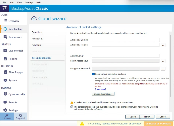
- Important Notes About Destination Setup
- The Check destination… button only verifies access to an existing cloud bucket/container. It does not create a new container. You must manually create the container or bucket in your cloud provider's portal ahead of time and enable Object Lock / Immutability (as per steps above).
- Configure that the Backup retention policy as desired.
- Note: Immutable Cloud Backups are not backward compatible and will not function if you downgrade to BackupAssist version 14.0.3 or earlier..
- No special recovery steps are required for immutable backups. You can restore data from an immutable cloud backup just as you would from a standard cloud backup.